




Speak naturally.
Start with voice or text, then follow the transcript and tool results in the same workspace.
Voice and chatVERIDIC · Voice AI assistant
VERIDIC is an AI agent for your Windows desktop. Talk or type to work with files, code and tools, then follow the results in one workspace.
Nine groups. One workspace.
Browse all 50 capabilitiesVoice and text for the Windows desktop.
One connected workspace
Explore 50 capabilities across nine parts of your desktop workflow.
Scroll to transform
The experience
A conversation is the starting point. VERIDIC gives the work a place to happen, and you a way to inspect it.
Start with voice or text, then follow the transcript and tool results in the same workspace.
Voice and chatSet a coding goal in Labs. Follow the edits, review a diff and inspect the checks that actually ran.
Coding and agentsSave decisions, notes and preferences so the next conversation can pick up where you left off.
Projects and memoryWorkspace tour
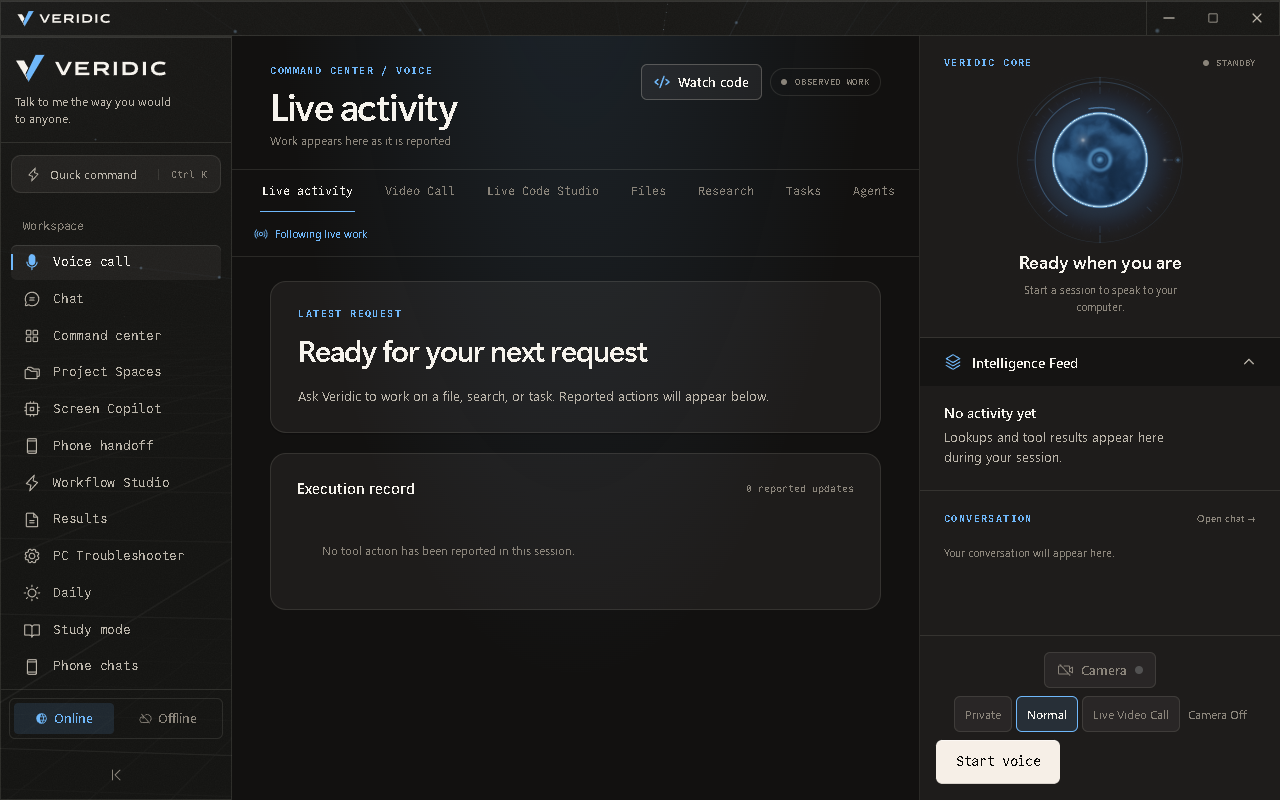
Take a closer look at the desktop you use to speak, follow a tool result and review a request.
Choose voice or text. The session controls show when the assistant is ready to listen.
See lookups and tool results beside the conversation. Open or collapse the feed whenever you need the space.
Inspect the latest request and its execution record. The workbench keeps reported actions visible as the session unfolds.
Capability directory
Fifty capabilities across nine groups, from a spoken question to a verified fix. Search them, or jump straight to a group.
Speak when your hands are busy. Type when you want a written trail.
Switch between voice and text. Read the transcript, revisit past conversations and pin the ones you want to keep.
Open the feed beside your conversation to see reported tool results and lookups as they arrive.
Chat with a downloaded model on your PC, add speech models for local voice, or use online voice with your own Gemini and LiveKit credentials.
With Windows speech recognition and microphone access, say “Hey Veri,” wait for the session to open, then ask. Standby listening can be switched off.
Point to the window you mean and give VERIDIC a specific job.
Choose a window, capture it and point to an error or control. Ask for an explanation, then review a proposed click on a fresh capture.
Open an installed app, work with selected files or act in the browser. Desktop and browser actions follow the controls you enable.
Search every local drive by the name you remember. A game title finds its real install folder, and “this file” means what is selected in File Explorer.
Deleted files go to the Recycle Bin, so you can restore them. VERIDIC asks first unless you set autonomy to Full.
Drive a browser page, download a file or media from a link, or register on a website when you give permission.
Inspect an application’s logs and running processes. Review the evidence, proposed repair and restore options before anything changes.
Hand over a problem. VERIDIC investigates in the background, names the cause the evidence supports, asks before each repair, then verifies the change and reports how to undo it.
Use Doctor to check setup and service health and get a system health grade. Optional monitoring flags problems early.
Keep the material for a project close enough to pick it up tomorrow.
Keep source files, notes, decisions and unfinished work together. Reopen a project with its saved context and app setup.
Turn a response into a report, checklist, diagram, table or chart with its sources attached. Export Markdown, PDF or JSON, or a table as CSV.
Ask VERIDIC to remember a preference, then inspect, edit or remove it later.
Find a previous request, check which steps ran and review its status or saved output in the Command Center.
Read files and write new ones inside your own folders. Requests that would expose secrets are refused.
Give repeatable work a home and keep a record of each run.
Read a morning brief or evening recap from available sources. Review inbox items, edit suggested replies and find follow-ups from calls VERIDIC handled.
Turn a procedure into named steps with inputs, conditions and review checkpoints. Preview a revision, run it and inspect its history.
Guide VERIDIC through desktop actions once and keep them as a reusable skill. Start routines by voice, on demand or on a schedule.
Choose the apps and sites you need, or books-only time. A timed Windows session turns on Do Not Disturb and guards the foreground window.
Get recurring progress updates on WhatsApp built from fresh task receipts while your PC is awake and VERIDIC is running.
Monitoring predicts trouble such as a filling disk. With proactive actions on, VERIDIC clears stale temp files itself and raises anything else with you.
Follow an answer back to the page, data or file it came from.
Search the web, read pages and check weather, air quality or exchange rates through routed, verified services.
Ask a question that needs several sources. With a research provider set up, VERIDIC plans searches, reads the pages and saves a report that cites them.
Ask about a CSV. VERIDIC proposes hypotheses from its columns, corrects for multiple comparisons, refuses tests the data cannot support and reports what it found, including nothing.
Research a supported NSE stock with every figure sourced: quotes, fundamentals and recent news from Upstox data. It never places orders.
Scan for setups, read the news and plan entries, exits and risk from free Yahoo and SEC data on 5-minute bars. It places no orders and is not financial advice.
Give VERIDIC a project folder and an outcome you can check.
Set an objective and acceptance criteria. Follow edits in Live Code Studio, review the diff and inspect commands, exit codes and the verification verdict.
Choose a specialist for research, writing, engineering, media or data. Agent Hub shows its instructions and tools and lets you edit or create profiles.
Break a larger objective into tasks, hand bounded work to roles such as planner, researcher and verifier, and inspect the evidence each one reports.
Run ReAct, CodeAct or basic agents from the AutoAgents framework on VERIDIC’s own model, limited to searching and reading the web.
Describe an error in one sentence. VERIDIC finds it in its own log, clears it when that is safe, or fixes it in a staging copy proved by a new test, then reports the real result.
VERIDIC looks for newer Gemini and Nemotron models, proves them on your key and adopts or holds them. It restarts to load changes while you are away and undoes one that stops it starting.
Review remembered lessons, benchmark scores and changes VERIDIC proposes to its own code, with approval and rollback controls and a tamper-checked record.
Bring selected conversations, calendars and documents into the workspace.
Pair a phone to share a task, continue its conversation or answer a confirmation. Your PC must be running, and away from home it also needs LiveKit.
Connect email, Telegram or WhatsApp for supported messaging. WhatsApp calls need a linked calling device. SIM calls need a paired Android phone nearby, with Bluetooth for audio.
Check availability, manage reviewed calendar events, find a Google Doc or append approved text. Each action needs the matching account permission.
Check access for Gmail, Sheets, Slides, Contacts and Tasks. Sending email uses the separate IMAP/SMTP connection.
Prepare media locally, review a preview and choose where it goes.
Build an edit from source clips, trim footage, add captions or audio and render previews locally. Your original files stay untouched.
Prepare a YouTube upload or an Instagram post for a connected Professional account, and review the exact render and settings before approving it.
See views, likes and comments on any upload, private analytics such as watch time, retention and audience, and a growth plan from your own numbers.
Get an idea from your channel data and trends, a full script saved to Documents/VERIDIC Scripts, and a reminder when it is time to record.
Generate images with FLUX, or read 3D joint positions and posture from a video with NVIDIA Maxine.
VERIDIC joins your Minecraft Java world as its own player to follow, protect and play survival with you. Progress comes only from game status.
Choose what the assistant can remember, connect to and change.
Review service grants, change the autonomy level and revoke access. Privacy & Data shows collection choices and offers local export and deletion.
Choose when to save searchable screen text on this device. Recall starts off, and you can review or delete stored entries.
Inspect registered tools and learned skills, switch extensions on or off and check external API health. Runtime skill acquisition is experimental.
Read VERIDIC’s own log with secrets redacted, check for updates and see backend health on the Developer page.
Built for Windows. Activate a licence online and review updates in the app. Local inference uses downloaded models, and activation still needs periodic network access.
No capability matches that search.
Run modes
Both modes share the desktop interface. The model, voice services and connections you configure decide what your assistant can use.
Use a downloaded model for local inference and add local speech models for voice. After setup, conversations can run offline between licence checks.
Connect your Gemini and LiveKit credentials for online voice. Add optional accounts for the tools you use and manage their permissions in Settings.
Plans
Prices are per month. Every plan activates online with a licence key, and there is no free plan or trial.
Voice, memory and routines
₹599per month
Your whole desktop, plus your phone
₹999per month
Agents and priority help
₹1,599per month
Windows beta
Check the requirements, choose a mode and activate your copy.
See what your PC needs for local models, online voice or both.
Run models on your computer, connect cloud services, or use each where it fits.
Enter your licence key once. VERIDIC checks it online and keeps working between checks.
Speak or type, then follow every result in one workspace.